USDT across networks: what TRC-20, ERC-20, Solana and TON mean and how to choose
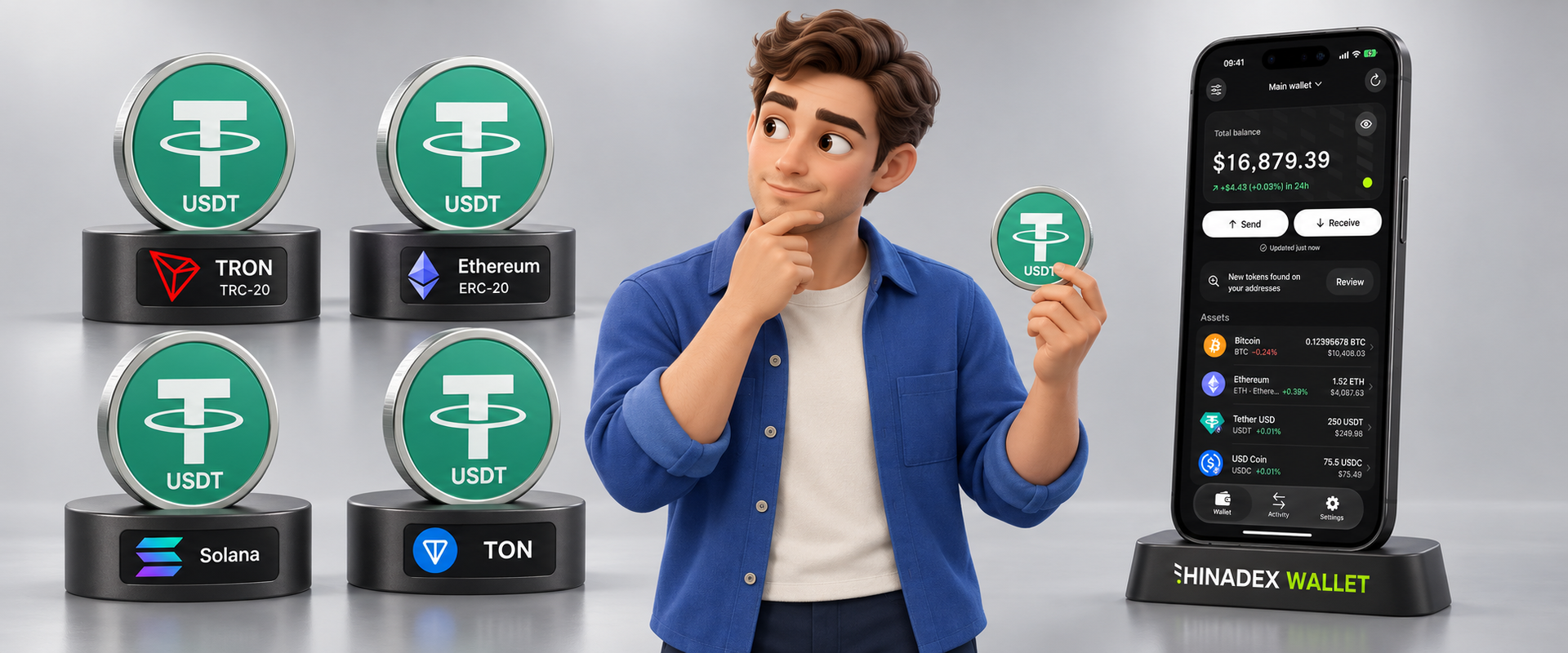
Understanding crypto wallets, networks and tokens so you can use digital assets with more confidence. A short guide for beginners.
You receive an address for a USDT transfer. You copy it, paste it into your wallet and enter the amount. All that remains is to choose a network.
Ethereum, TRON, Solana, TON, Arbitrum.
This is a good moment to pause. These names can all appear when you use USDT, but the networks are not interchangeable for a particular transfer. If the recipient expects USDT on TRON, sending it through Ethereum will not meet that requirement.
This detail is a starting point for understanding blockchain networks. On the screen, we see familiar names and amounts. Behind them are different rules for transactions and different ways of accessing funds.
You do not need advanced technical knowledge to make sense of this. You need to understand what you are selecting and what you are confirming.
One token can exist on several networks
USDT aims to maintain a value close to one US dollar and is issued on several blockchains. Ethereum, TRON, Solana and TON are among its supported networks. Official information from Tether.
Think of streets with the same name in different cities. The name is familiar, but without the city, a parcel could end up somewhere else entirely.
Tokens work in a similar way. The name USDT tells you which asset you are looking at. The network tells you where that asset exists.
The labels on the screen can also describe different things. TRC-20 and ERC-20 are token standards. TRON, Ethereum, Solana and TON are network names.
USDT TRC-20 means USDT on TRON. For USDT on Ethereum, choose Ethereum. When you see ERC-20, check the exact network name: this standard is also used on other compatible blockchains.
On Arbitrum One, you may also encounter USDT0. Its contract details are published separately. Check the specific token version the recipient accepts. Official USDT0 documentation.
Even a familiar address format is no substitute for checking the network.
A wallet gives you access to your assets
The word “wallet” suggests a familiar picture: you put money inside and take it out when you need it.
On a blockchain, information about assets and transfers is stored on the network. The application helps you view your balance and authorize a transaction using digital keys.
Who controls those keys determines the type of wallet.
On a custodial exchange or service, the company controls the keys. You sign in with your username and password, and the service processes your transactions.
This feels familiar: if you lose your password, the company may offer an account recovery process. Your use of the funds remains subject to its rules and restrictions.
With a non-custodial wallet, you control the keys. This gives you independence in managing your assets, but it requires more care with recovering access. More about wallets and control of keys.
A personal account on a website does not, by itself, mean the wallet is custodial. What matters is who holds the keys and authorizes transactions.
Many non-custodial wallets use a seed phrase: a secret set of words that lets you recover access on another device.
It looks like ordinary text. Its role is much more serious: someone who obtains that phrase may gain access to your funds.
A request to “send the words so we can verify your wallet” is a sign of a scam. Never share your recovery phrase or private key in messages or with support. Guidance on protecting access.
If you lose every way of accessing and recovering your wallet, the familiar “Forgot password?” button will no longer help.
A familiar name still needs checking
Suppose you find a token called USDT. It has a familiar logo, and a token balance appears beside it.
That is not enough to establish that it is genuine. The name, ticker and image can all be copied.
For ERC-20 tokens on Ethereum, check the contract address: it identifies the particular token on the selected network. You can verify the official USDT addresses on Tether’s website.
Other networks use their own identifiers. On Solana, a token is identified by its mint address. On TON, it is identified by the address of its main token contract, the jetton master. Solana documentation, TON documentation.
It is easy to mix up addresses that serve different purposes. Sending funds requires the recipient’s address. Manually adding a token to your asset list requires the token’s own identifier, such as its contract address.
Before adding a token, open an official source for the project and compare the details. A blockchain explorer can help you examine it, but having a page in an explorer does not prove that the token is genuine.
What this looks like in Hinadex Wallet
In Hinadex Wallet, managing your asset list starts in the “Manage assets” section.
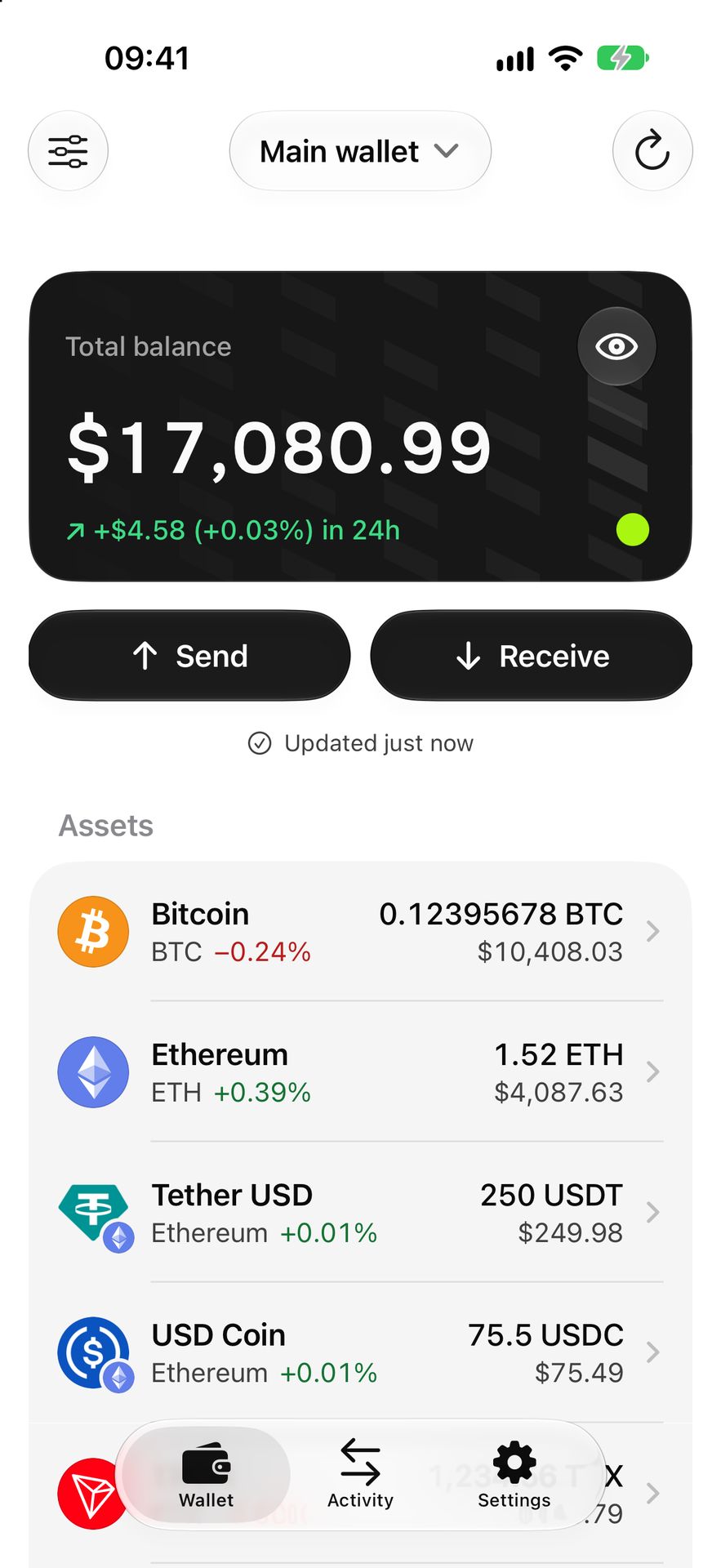
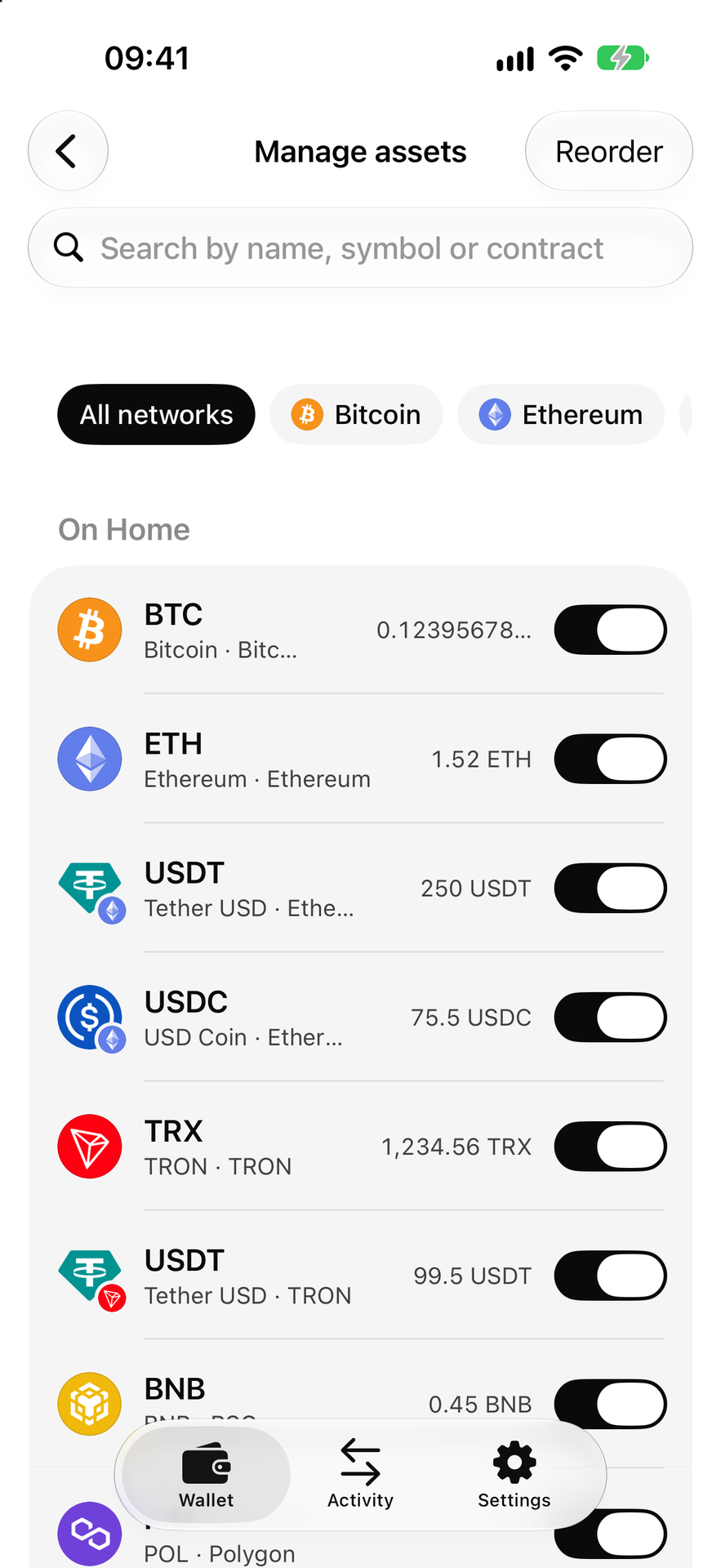
First, search for the token you need. If it is already in the list, turn on the switch on the right to display it on the main screen.
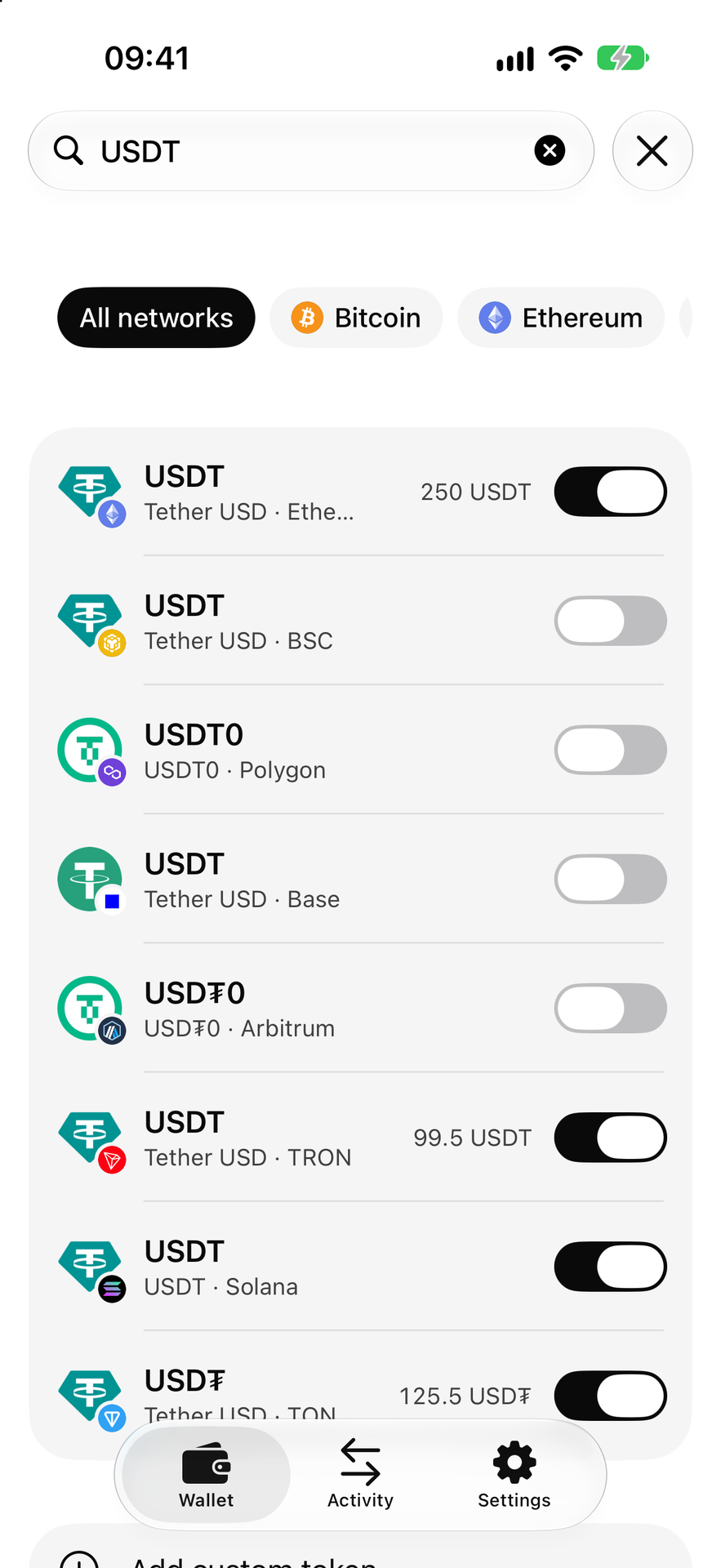
If the search returns no result, choose “Add custom token”. Select the network, paste the verified token address into the corresponding field and tap “Add token”.
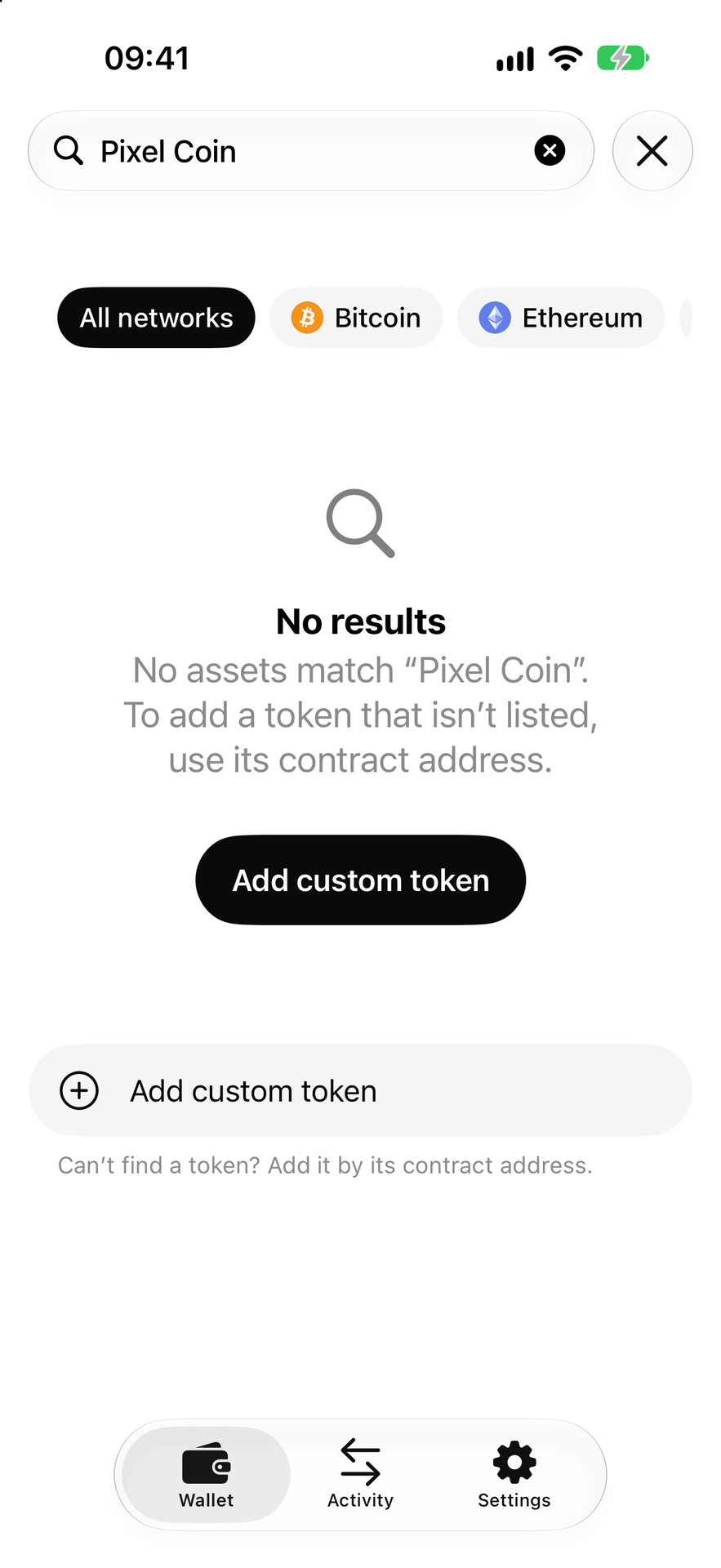
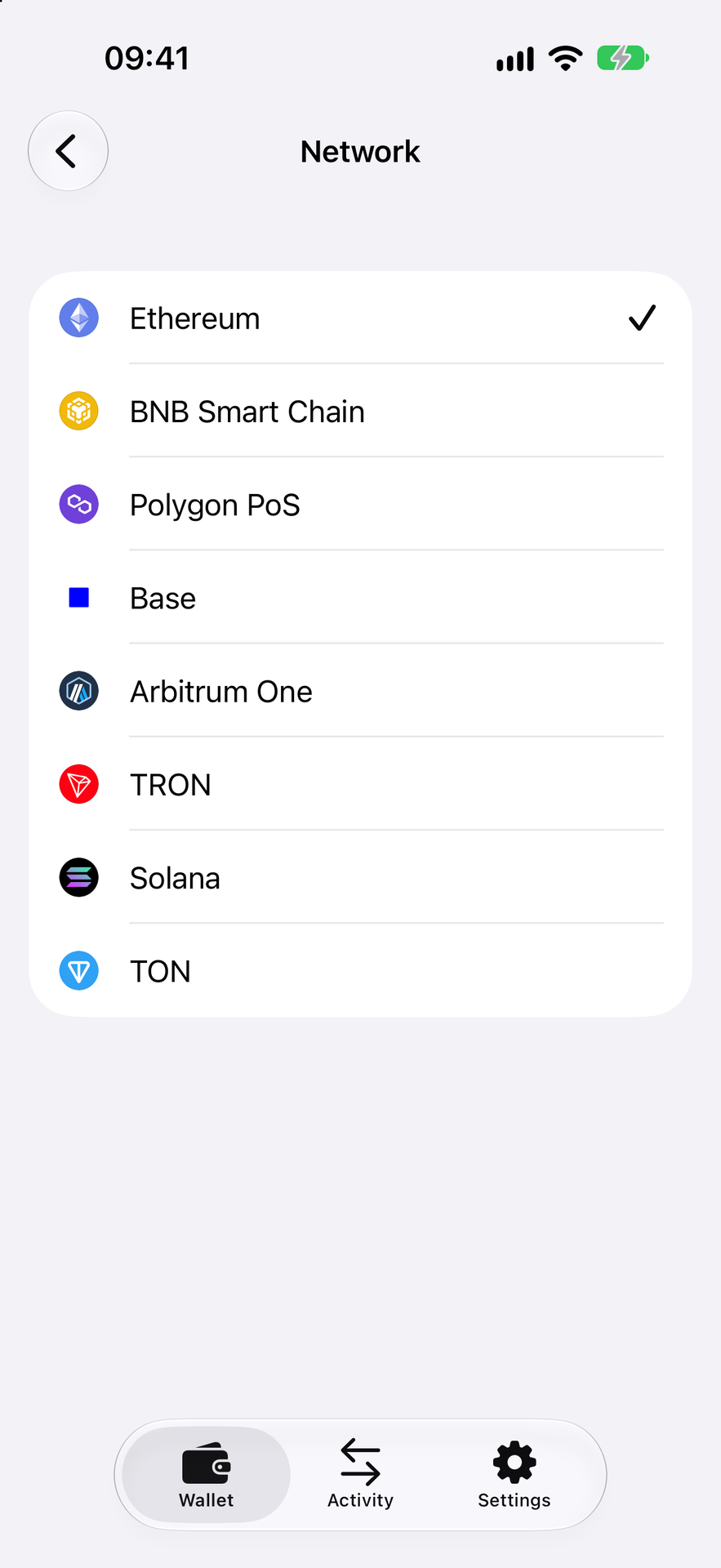
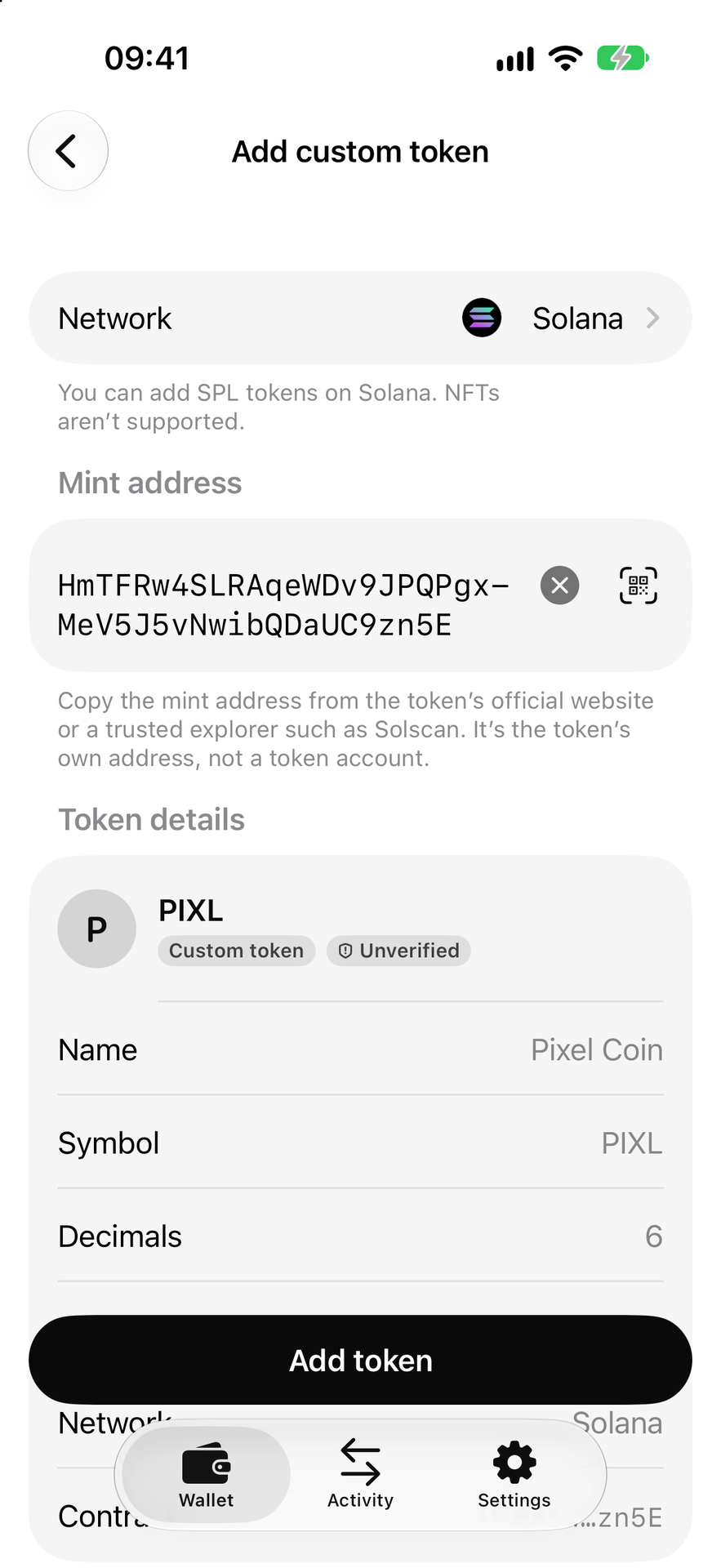
This configures how the asset appears in the application. Adding it to the list does not buy the token or transfer funds. This operation also does not require you to share your secret phrase or private key with anyone.
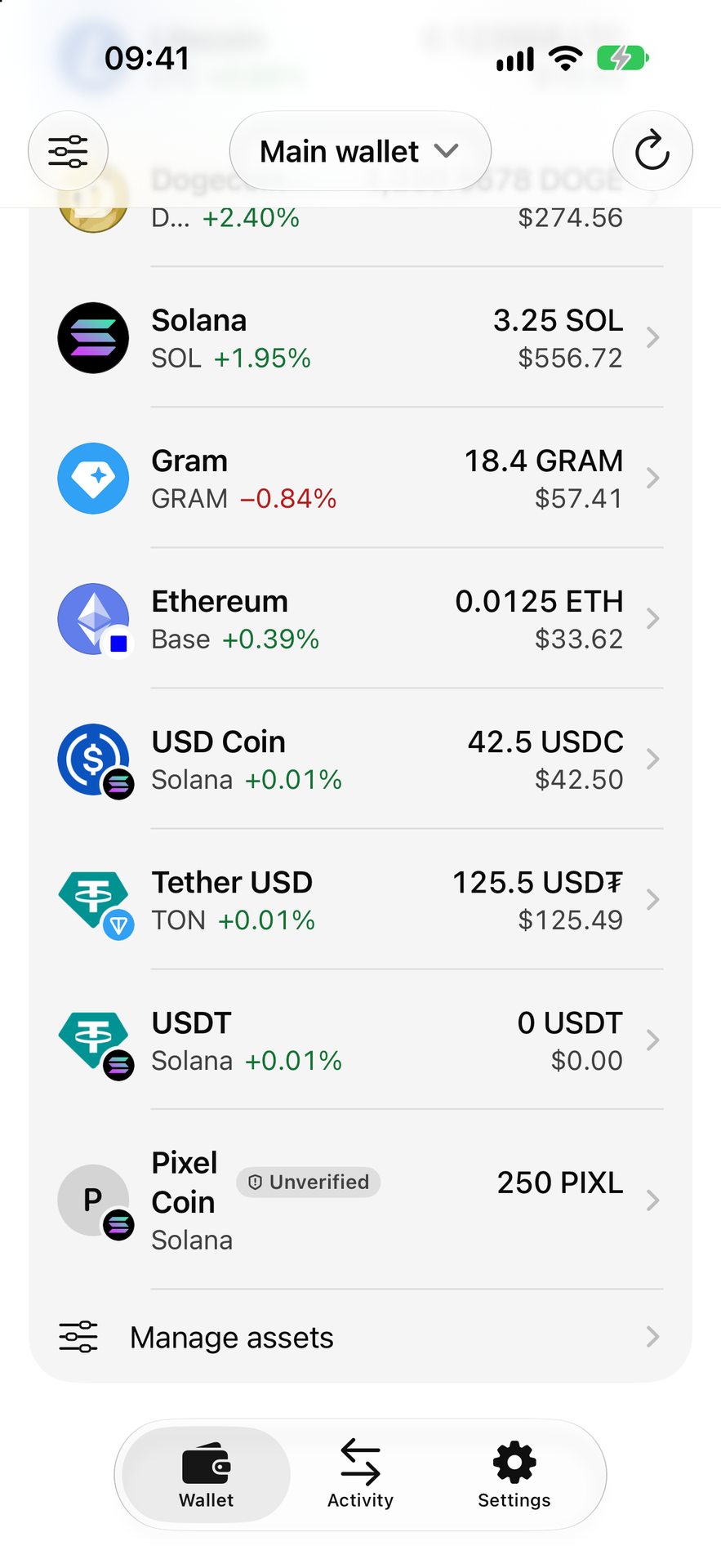
A useful starting point is one verified asset: find it, understand its network and check where its address came from. The list of tokens on the screen will then make much more sense.
For a first transfer to a new address, you can send a small test amount, taking into account the fee and the recipient’s minimum deposit amount. If an unknown token promises a reward and asks you to follow a link, first find out where it came from.
The next time a transfer form asks you to choose a network, pause at that field. This is where the familiar name “USDT” becomes a specific asset the recipient can accept.
